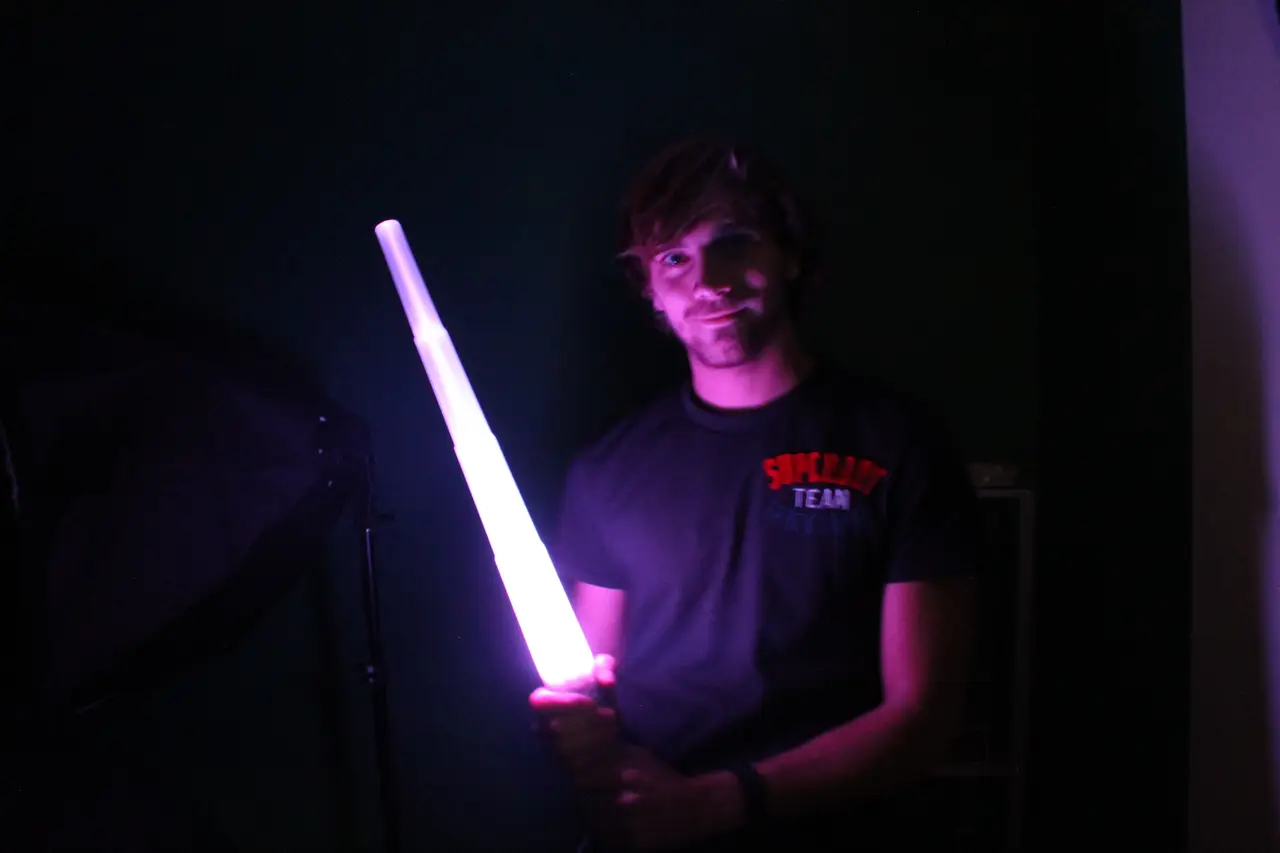
Telescopic Light Sword with micro:bit Control
por 3DMate en MyMiniFactory
Light Sword Tutorial
MyMiniFactory entrega los archivos a usuarios con cuenta gratuita
Licencia
Solo uso personalMyMiniFactory - Credit - Remix - Noncommercial
Licencia de MyMiniFactory: puedes imprimirlo y remezclarlo dando crédito, sin fines comerciales.
Al descargar aceptas respetar la licencia y dar crédito a 3DMate.
Archivos (8)
- 3ea0dac9633c2c1553c4d2396db5c97436ef05e5.stl STL
- af7da7fc7d1613ffc177ede8f17bf3855978ce2a.stl STL
- b1642244a2b385a871ccf897441a43e19073ccc6.stl STL
- be8f7865205f91140fff4eeed76bdda0edc42457.stl STL
- c7a10cb1dbd8fbd73ebd4c21c1af15eefa321e90.stl STL
- ea0c43d85b98049c3f849db17a4839288b013c99.stl STL
- ea6ecdc0f40d67419a45533b4f00f0676f736344.stl STL
- ef9f8cb087b1cd2b020c1ad08d089d7a5321a2a4.stl STL
- Categoría
- Cosplay y props
- Formatos
- STL
- Descargas
- 869
- Publicado
Sobre este modelo
Light Sword Tutorial
This tutorial will show you how to make your own Light Sword! You will learn how to use LEDs, particularly RGB LEDs, and transistors as well! You also will have to solder, using a breadboard (not the kind you cut bread on!).
Programming the light sword gives you many possibilities, you can choose the colour you want, choose the action of the button and the movement as well! I made a small code that change the brightness when you’re moving the light sword, use this to inspire you to do others things! Enjoy this project!
Things you will need:
• A 3D printer
• 1 micro:bit device and battery pack
• Filament (plastic) for your 3D printer, -Transparent –Flexible(optional)!
• 5mm RGB LED & Resistors
• N-MOS Transistors & breadboard
• Wires
• Heat shrink tubing
• Soldering Station
Parts description:
Step 1: Printing the Parts
Find all the parts here: https://www.myminifactory.com/object/telescopic-lightsword-with-micro-bit-14598
1. The sword: First of all you have to print the sword using transparent filament.
· To obtain the 3D files push the download button on this page !
· Next you will have to slice the parts: that means generate a code, representative of your 3D part which your printer will be able to understand. This action is called "slicing" because your printer prints the part layer by layer, so you need to slice your object into many digital layers. You will need to use the right slicer for your 3D printer, ask your teacher if you need help with this!
· The most important setting for the printer is the temperature of the nozzle, which will depend on the type of filament you use, the speed, the infill, the layer height, and whether you need support or not will also need to be considered.
· For the sword, just use 3 shells, no supports and a raft to be sure that it doesn’t warp.
Export your code to your SD card and take it over to the printer!
2. The handle: Now you have to print the handle using regular filament, PLA or ABS, I printed it with a grey filament but you can choose your own colour, you can also print it in white and paint it after which allows you to add more details! J Use an infill of 15%, medium speed, and support
3. Clips and button: Regular filament as well, use a low speed because they are very small parts, but don’t worry they are not hard to print.
4. Tools for LED disk construction: This part is just there to help you build the LED disk, print it with regular filament, 15% infill, and medium speed.
5. Battery spring and cover: It is better to print these 2 parts with flexible filament. If you don’t have any, print the cover in regular plastic, and use a regular steel spring for the battery spring.
Step 2: Flash the micro:bit
You can find this script here.
Step 3: Building the LEDs disk.
Here we are going to build the LED disk which is going to light the sword.This is not very easy to do, you have to be very thorough and organised,but if I can do it so can you! An easier way to do it is to use regular LEDs, but that will mean you will not be able to change the colours. Anyway, let’s start! J
1. Wiring LEDs, theory :
Descripción original del autor, publicada en MyMiniFactory.