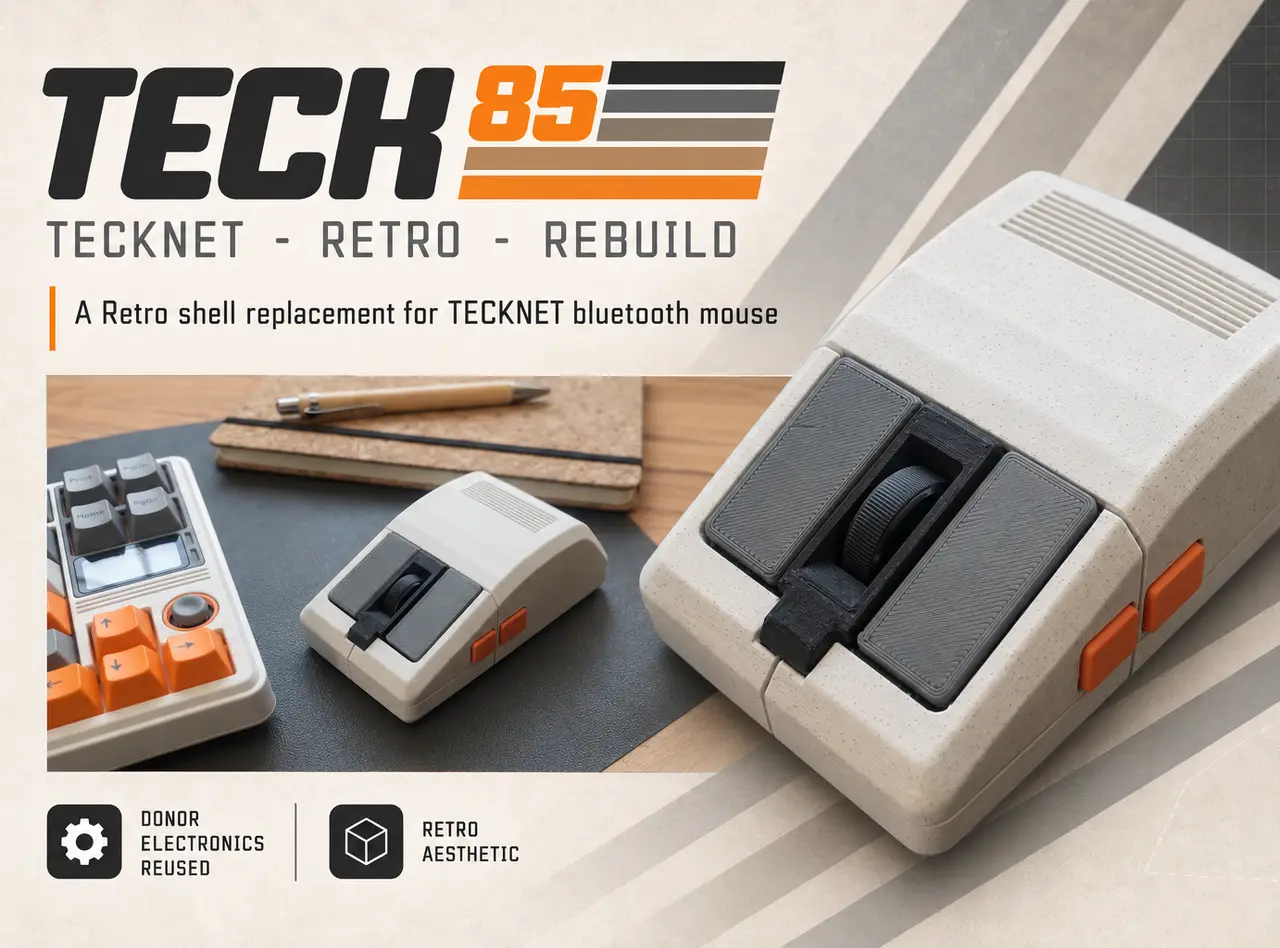
TECK 85 - Retro TeckNet Mouse Rehousing Project
por Omega en Printables
A retro style replacement shell for a TECKNET Bluetooth Mouse, 3200DPI Wireless Mouse BM308.
Licencia
Solo uso personalCC BY-NC-SA 4.0 — Atribución, no comercial, compartir igual
Uso personal dando crédito; sin fines comerciales y las modificaciones con la misma licencia.
Al descargar aceptas respetar la licencia y dar crédito a Omega.
Archivos (10)
- TECK85_shell_top.stl STL · 606 KB
- TECK85_shell_bottom.stl STL · 929 KB
- TECK85_button_deck.stl STL · 112 KB
- TECK85_button_right.stl STL · 57 KB
- TECK85_button_left.stl STL · 58 KB
- TECK85_side_button_1.stl STL · 76 KB
- TECK85_bluetooth_button.stl STL · 127 KB
- TECK85_side_button_2.stl STL · 70 KB
- TECK85_slide_switch.stl STL · 19 KB
- TECK85_battery_cover.stl STL · 257 KB
- Categoría
- Tecnología
- Formatos
- STL
- Descargas
- 200
- Publicado
Sobre este modelo
TECK 85 is a retro-style replacement shell for the TECKNET BM308 Bluetooth mouse. This project started because my own mouse came flying out of my bag, hit the floor, and managed to break the left click and both side buttons. The PCB and electronics were still perfectly fine, but without a functioning shell it was basically useless.
Rather than bin it, I decided to build a new shell around the donor electronics. What started as a fairly simple “make the mouse work again” job turned into a much bigger design exercise. I wanted something that matched my Epomaker RT85 keyboard, so I went through a lot of shape ideas, colour experiments and physical prototypes before landing on the final TECK 85 design. The shell is designed specifically around the internal layout of the TECKNET BM308. It is not a generic mouse shell, and I would not expect it to fit other TECKNET models. Check the photos carefully against your own mouse before printing. The final design keeps the original PCB, optical sensor, wheel, AA battery system and electronics, but replaces the complete outer shell, button deck, side-button mechanisms and battery cover. The hardest part of the project was not actually the outer shape, but the internal tolerances. Mouse buttons operate over very small distances, and there is very little difference between a button that does not click at all and one that works properly. A fair amount of rapid prototyping went into getting the click geometry, button return and PCB position right. Materials - TECKNET BM308 - TECKNET Bluetooth Mouse, 3200DPI Wireless Mouse, Portable Cordless Mice
- Original screw from the TECKNET donor mouse
- 2 × 2.5 mm × 8 mm button-head plastic screws, or similar - I scavenged mine from an old radio
- Super glue
- Soldering iron
- AA batteries
Assembly - Fit the optical sensor, slide switch and Bluetooth button into the lower/button shell.
The Bluetooth button is retained using heat staking. The printed plastic peg passes through the button component and is then gently melted over with a soldering iron to form a permanent retaining head.
You do not need much heat here. The idea is to deform the end of the peg, not melt half the mouse. - Mount the main PCB into the lower shell.
Make sure the optical sensor, wheel and switches all sit correctly in their intended locations. Pay particular attention to the battery contacts. These need to be properly seated before the shells are finally closed. - Fit the side buttons to the upper shell.
I found the easiest method was to place a tiny amount of super glue on each part first to hold everything in position, then heat stake the printed retaining pegs once the alignment was correct. The side buttons are small parts, so take your time here. - Join the upper and lower shells.
Before tightening anything, check that the battery terminals are properly seated and that the main PCB has not shifted. Secure the shell using the original screw and the two additional screws: - one at the front/nose
- one inside the battery compartment
These lock the upper and lower shell together. - Fit the button deck.
Super glue the button deck into position on the upper shell. Once this is seated, place the left and right click buttons into position.
- Tune the click buttons.
This is the important bit. Test both buttons before permanently attaching them. If a button is too hard to press, shorten the small actuator peg on the underside of the button very slightly. Do this gradually. We are talking fractions of a millimetre here. Removing too much material will result in a button that no longer reaches the microswitch. Once the click feel is right, secure the buttons with a small amount of super glue. If you want a more permanent installation, you can then separate the shell again and heat stake the button components from underneath. - Install the batteries and battery cover. Optionally add skates.
Fit two AA batteries, check the mouse powers on and connects correctly, then screw the battery cover into place.
There are four shallow holes on the bottom shell where you can add 8mm PTFE mouse skates for better feel. I do recommend this as it feels much more like a genuine product after adding the skates. That should be it. A note on heat staking I used heat staking quite a lot in this design instead of adding lots of tiny screws. The basic idea is simple: a printed PLA peg passes through a hole in another component, and the end of the peg is then softened with a soldering iron and flattened into a small mushroom-shaped head. It works a bit like a plastic rivet. Design notes The shell went through quite a few iterations before reaching this version. Early designs were much more boxy and heavily inspired by old Amiga, Atari, terminal and 1980s industrial hardware. Over time the design became slightly more ergonomic while keeping the chunky retro shape. The whole thing was designed with ordinary FDM printing in mind (CR10), including the visible layer texture. I did not want it to look like an injection-moulded modern mouse with a retro colour scheme stuck on top. The printed construction is part of the look. Most importantly, this project rescued a perfectly functional mouse that would otherwise have become e-waste.
Descripción original del autor, publicada en Printables.