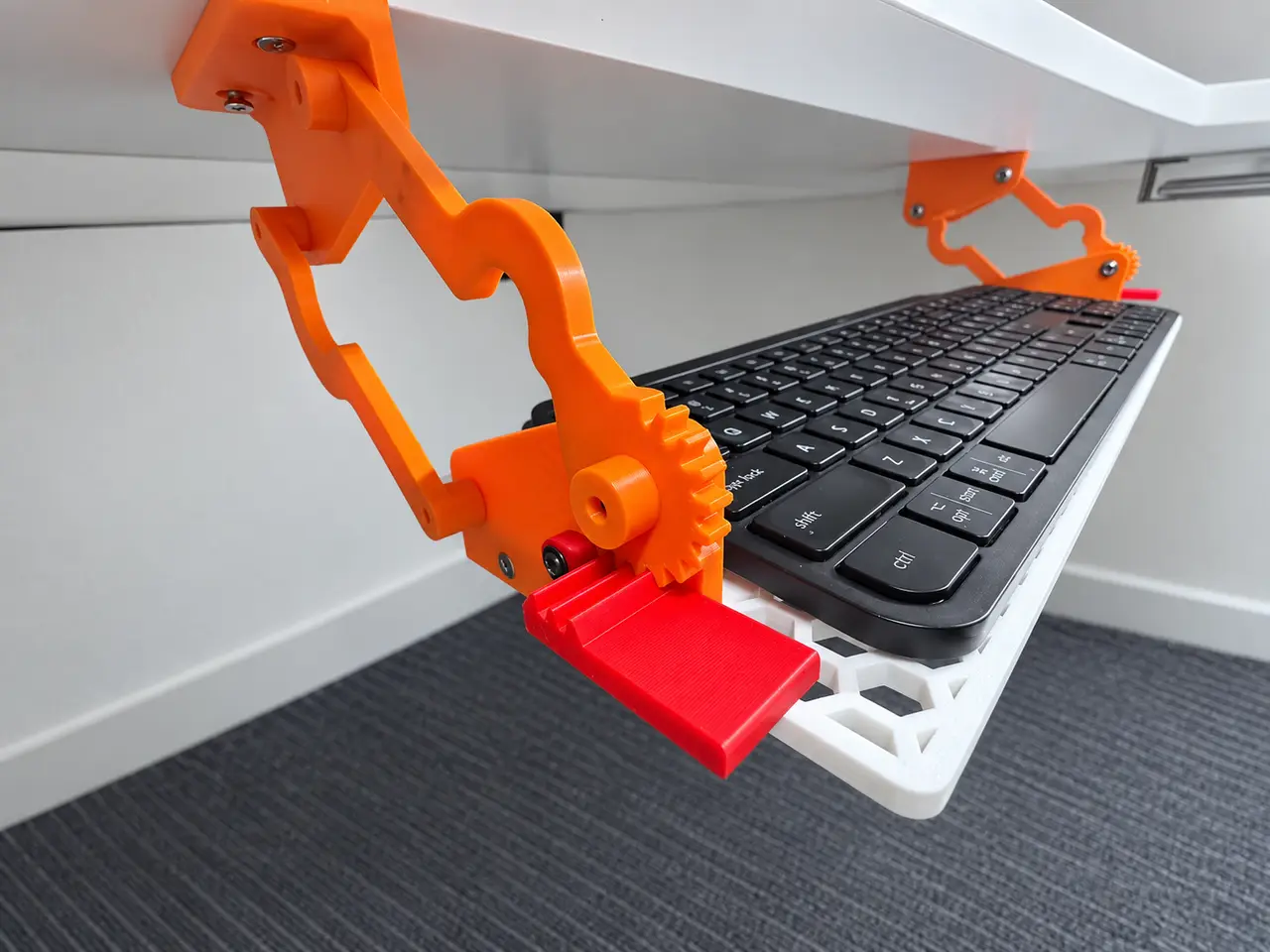
Swing-Out Under-Desk Keyboard Tray
por ArtSuzhou en Printables
A 3D printed swing-out keyboard tray support designed to bring the keyboard closer to the user when needed.
Licencia
Solo uso personalCC BY-NC-SA 4.0 — Atribución, no comercial, compartir igual
Uso personal dando crédito; sin fines comerciales y las modificaciones con la misma licencia.
Al descargar aceptas respetar la licencia y dar crédito a ArtSuzhou.
Archivos (20)
- Keyboard tray full size Left Short.stl STL · 485 KB
- Keyboard tray full size Left.stl STL · 482 KB
- Keyboard tray full size Right.stl STL · 419 KB
- Keyboard tray full size Back Plate.stl STL · 102 KB
- Keybaord tray mechanism - Upper Bracket Left.stl STL · 71 KB
- Keybaord tray mechanism - Upper Link Arm Right.stl STL · 117 KB
- Keybaord tray mechanism - Upper Link Arm Left.stl STL · 117 KB
- Keybaord tray mechanism - Locking Lever Right.stl STL · 50 KB
- Keybaord tray mechanism - Lower Link Arm Right.stl STL · 65 KB
- Keybaord tray mechanism - Lower Bracket Left.stl STL · 106 KB
- Keybaord tray mechanism - Locking Lever Left.stl STL · 50 KB
- Keybaord tray mechanism - Upper Bracket Right.stl STL · 71 KB
- Keybaord tray mechanism - Lower Bracket Right.stl STL · 106 KB
- Keybaord tray mechanism - Lower Link Arm Left.stl STL · 65 KB
- Keybaord tray Short Backplate.stl STL · 54 KB
- Keyboard tray Short.stl STL · 697 KB
- Keyboard Tray Full Size.step STEP · 3,1 MB
- Keyboard Tray Short.step STEP · 3,0 MB
- Keyboard tray mechanism.step STEP · 486 KB
- Keyboard Tray Mounting Template.stl STL · 77 KB
- Categoría
- Tecnología
- Formatos
- STL, STEP
- Descargas
- 1,366
- Publicado
Sobre este modelo
I designed this 3D printable swing-out keyboard tray support to make the Logitech MX Mechanical Keyboard easier to position and access, especially for users who may have difficulty reaching a keyboard placed on top of a desk. The mechanism mounts underneath the desk and allows the keyboard to swing forward into a comfortable typing position, then fold back underneath the desk when it is no longer needed. Unlike a conventional sliding keyboard tray, the articulated arms move the keyboard outward and forward in an arc. This can help bring the keyboard closer to the user without requiring them to reach deeply across the desk. The design may be useful for people with limited shoulder or arm mobility, reduced reach, chronic pain, wheelchair seating positions, or anyone who needs more flexibility in keyboard placement. The two support mechanisms use linked arms and synchronized movement to support the tray from both sides. Large release/locking levers are positioned near the front so the mechanism can be operated without reaching far underneath the desk. The keyboard itself is not modified in any way. It simply rests on the tray, making the system completely reversible. Two versions are provided: a full-size version (462 or 480mm) designed for full-size keyboards such as Logitech MX, and a shorter version (300 mm) for compact keyboards such as the Logitech Pebble Keys 2. Features include: swing-out and fold-away movement; under-desk mounting; adjustable keyboard positioning; large, easy-to-operate release levers; mostly 3D printed construction; replaceable individual components; and compatibility with a lightweight printed, wood, acrylic, or aluminum tray. The example shown uses a lightweight honeycomb-pattern 3D printed platform with my Logitech keyboard. The support mechanism is mounted underneath the desk using common screws and hardware. I designed this because a fixed desktop keyboard position is not ideal for everyone. Being able to bring the keyboard closer to the body instead of requiring the user to reach toward the desk can make a workstation substantially easier to adapt to the individual user. Accessibility focus: Different reach / limited arm mobility / ergonomic keyboard positioning Assembly Instructions The Left Assembly and Right Assembly are mirrored versions of each other. Assemble both mechanisms first, attach them to the keyboard tray, and then mount the complete tray under the desk. Parts (Note: Amazon links for the hardware/parts are provided for reference only. You do not need to purchase from Amazon. All required hardware can typically be found at a local hardware store for less than $10 total.) For each side you will need: - 1 × Upper Bracket
- 1 × Lower Bracket
- 1 × Upper Link Arm — the arm with the locking gear
- 1 × Lower Link Arm
- 1 × Release Lever
- Pivot Screws x 4 (#8 x 3/4 or M4 x 20 mm Self Tapping pan head phillips pan screw)
- Lever Screw x1 (M2.6 x 12mm Self Tapping pan head phillips screw)
- Spring for the release lever (0.6x7x20mm or similar).
You will also need: - 1 × Keyboard Tray (For the full size version, connect the Left and Right part with 4 #6 x 1/2 (M4 x 12 mm) inch Flat Head Phillips Wood Screws.
- 1 × Back Plate (Optional)
- 4 #6x 1 inch (M4 x 20 mm) Flat Head Phillips Wood Screws suitable for mounting the upper brackets to your desk
1. Assemble the linkage Start with one side. Attach Upper Link Arm to the Upper Bracket using a pivot bolt. Attach Lower Link Arm to the second pivot point on the Upper Bracket. Do not fully tighten the pivot bolts. The arms need to rotate freely without excessive side-to-side play. 2. Attach the Lower Bracket Connect the opposite ends of Upper Link Arm and Lower Link Arm to the corresponding pivot points on the Lower Bracket use 4mm x 18 mm screws. Upper Link Arm should be positioned so that the gear teeth face the release lever. Once both arms are attached, move the mechanism through its full range of motion. The two arms work together as a linkage to keep the keyboard tray approximately level as it swings in and out. Again, tighten the pivot hardware only enough to remove excessive play. Do not clamp the printed parts tightly together. 3. Install the locking lever Mount the Locking Lever onto the Lower Bracket at its pivot point with a 3mmx12mm screw. Install the spring so that it pushes the lever toward the gear teeth on Upper Link Arm. Check that: - The lever naturally engages the gear.
- Pressing the large paddle disengages it.
- The linkage can move while the lever is held.
- Releasing the lever allows it to lock securely into the gear again.
The large paddle is intentionally easy to reach and operate. 4. Repeat for the other side Assemble the opposite mechanism in exactly the same way using the mirrored right-side parts. Make sure the two assemblies are true mirror images of each other. 5. Attach the keyboard tray For the full-size version, the keyboard tray consists of separate left and right sections. Two versions of the Left section are provided to accommodate keyboards up to 462 mm or 480 mm wide, while also allowing users to choose the version that fits their 3D printer's build plate smaller than 250mm. The Logitech MX Mechanical is approximately 430 mm wide, so the 462mm version works fine. Align the two tray sections and connect them using 4 × #6 × 1/2" screws through the provided joining holes. Tighten the screws evenly so the two halves sit flush and the tray remains flat. An optional back tray stopper is also included. Install it along the rear edge of the tray if you want additional protection against the keyboard sliding backward while the tray is moving between the stowed and deployed positions. The stopper is optional and can be left off if it is not needed for your keyboard setup. Attach the Lower Brackets to the left and right sides of the keyboard tray use #6 x 1 inch screw. Keep both sides aligned so the tray remains square and level. Before fully tightening the mounting hardware, operate both mechanisms several times to make sure nothing binds. Install the Back Plate at the rear of the keyboard tray. It helps keep the keyboard from sliding backward when the tray is being moved. 6. Mount under the desk Position the completed assembly underneath the desk and determine the most comfortable location before drilling any holes. The tray should: - Clear the front edge of the desk when swinging out.
- Fold completely underneath the desk when stored.
- Be centered with your normal sitting position.
- Have enough clearance for your knees and other equipment under the desk.
Mark the mounting holes through both Upper Brackets, then secure the brackets to the underside of the desk using screws appropriate for your desk material. It is easier to install if another person supports the keyboard tray while the brackets are being screwed into place. To make it easier to locate the mounting screw positions under the desk, temporary Mouting Template bracket are provided. First, attach the locating brackets to the left and right sides of the keyboard tray. Position the tray under the desk where you want it installed and make sure it is centered and has enough clearance to move between the stowed and deployed positions. Use the locating brackets to mark the mounting screw locations on the underside of the desk. Then: - Mark all mounting-hole locations.
- Remove or lower the tray as needed.
- Pre-drill the mounting holes using an appropriately sized drill bit for your screws and desk material.
- Remove the temporary locating/template brackets from the keyboard tray.
- Position the actual Left and Right tray mechanisms over the pre-drilled holes.
- Secure both Mounting Brackets to the underside of the desk using the appropriate mounting screws.
Before fully tightening the screws, check that both mechanisms are aligned and that the tray moves freely. The locating brackets are only used as installation templates and are removed before the final tray mechanisms are installed. 7. Final adjustment and testing Before placing a keyboard on the tray: - Swing the tray fully out.
- Lock it in position.
- Check that both sides are securely engaged.
- Release both levers and fold the tray underneath the desk.
- Repeat several times to make sure the mechanism operates smoothly.
Descripción original del autor, publicada en Printables.