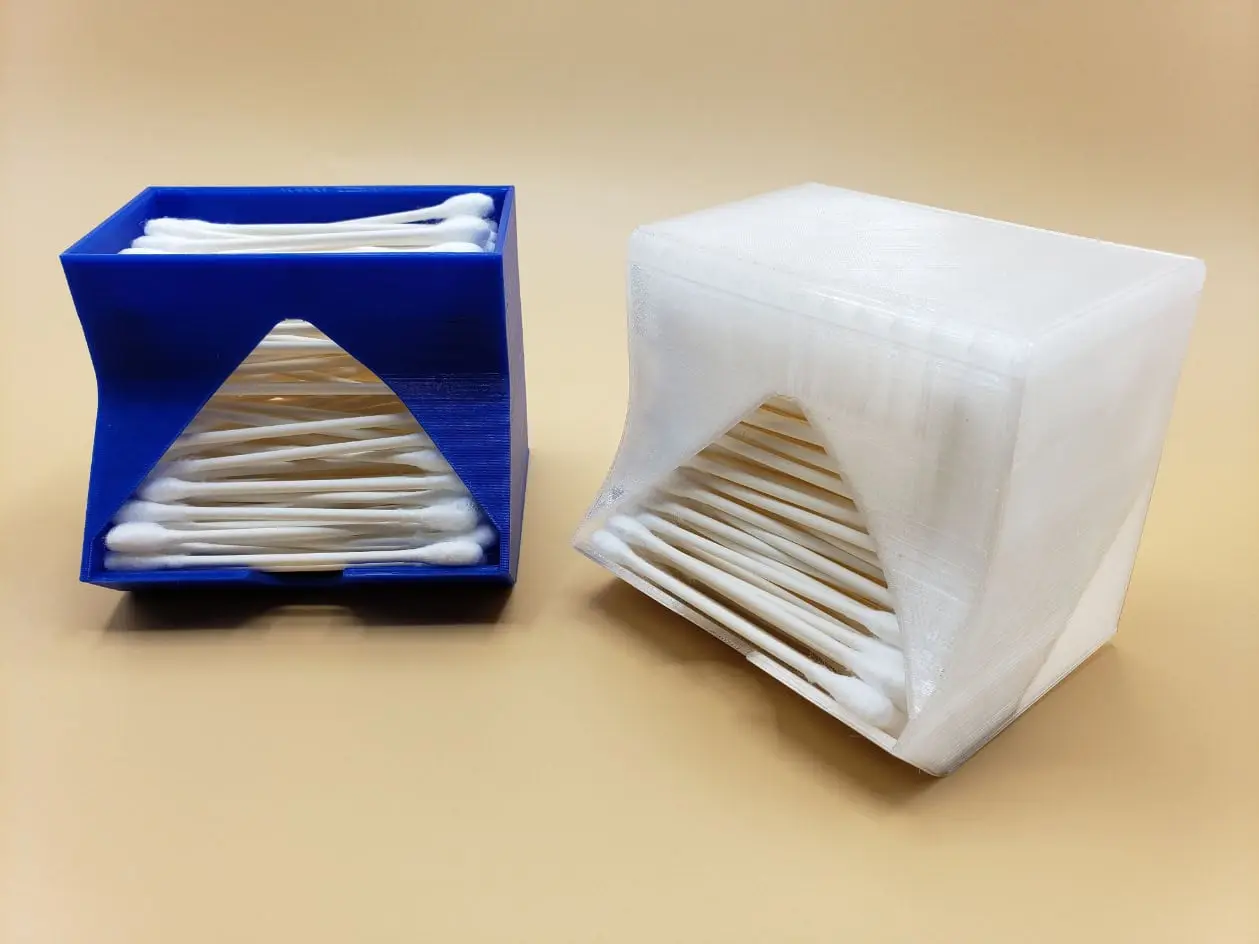
Q-Tip Swab Dispenser
por Mark Henrichs en Thingiverse
Sized for more easily dispensing Q-tip size swabs (slightly longer than some cotton swabs), the inside length is 85mm. Holds about 135 swabs. You can easily see how many swabs are left, even with solid print colors. Lid included to keep out dust. Designed to be printed without supports, on most...
Licencia
Uso comercial permitidoPuedes imprimirlo, modificarlo y venderlo dando crédito al autor.
Al descargar aceptas respetar la licencia y dar crédito a Mark Henrichs.
Archivos (4)
- Categoría
- Organización
- Formatos
- STL, FCSTD
- Descargas
- 9,497
- Publicado
Sobre este modelo
Sized for more easily dispensing Q-tip size swabs (slightly longer than some cotton swabs), the inside length is 85mm. Holds about 135 swabs. You can easily see how many swabs are left, even with solid print colors. Lid included to keep out dust. Designed to be printed without supports, on most printers. The rear opening not only saves filament and print time, but makes it a little easier to straighten out swabs while filling the container. Max outside dimensions: 89mm L x 80mm D x 75mm H (81mm H w/Lid). If you use multiple swab types, try my "Triple Swab Dispenser" which stacks three separate swab compartments in one unit! Customizing Source FreeCAD files are included, if you want to do any fine-tuning. Even if you don't know FreeCAD, it is fairly easy to change the key dimensions, since these dimensions are defined in a built-in spreadsheet. Just download FreeCAD, load both .FCStd files, and double-click the "Spreadsheet" under the "Q-TipDispenser" body on the "Model" tab's tree. This opens the Spreadsheet tab. The yellow-background values are used in the lid, as well as on the main container. Just modify the desired number(s) in column B to adjust the dimensions (in mm) of that part of appropriate sketches - most changes (as long as they are not extreme) will adjust the appropriate inter-related dimensions and shape. Try just making small changes first, then checking the results in the 3D model. You can see your new dimension changes by viewing (double-clicking) the appropriate "...Sketch" objects under the "...Pad" items in the body tree. Have fun!
Descripción original del autor, publicada en Thingiverse.