OpenTag-Station
por 76cb en Printables
Filament scale + OpenPrintTag NFC station enclosure for the WT32-SC01 Plus. 3 parts, no supports.
Licencia
Solo uso personalCC BY-NC-SA 4.0 — Atribución, no comercial, compartir igual
Uso personal dando crédito; sin fines comerciales y las modificaciones con la misma licencia.
Al descargar aceptas respetar la licencia y dar crédito a 76cb.
- Categoría
- Para tu impresora
- Formatos
- STL
- Descargas
- 1
- Publicado
Sobre este modelo
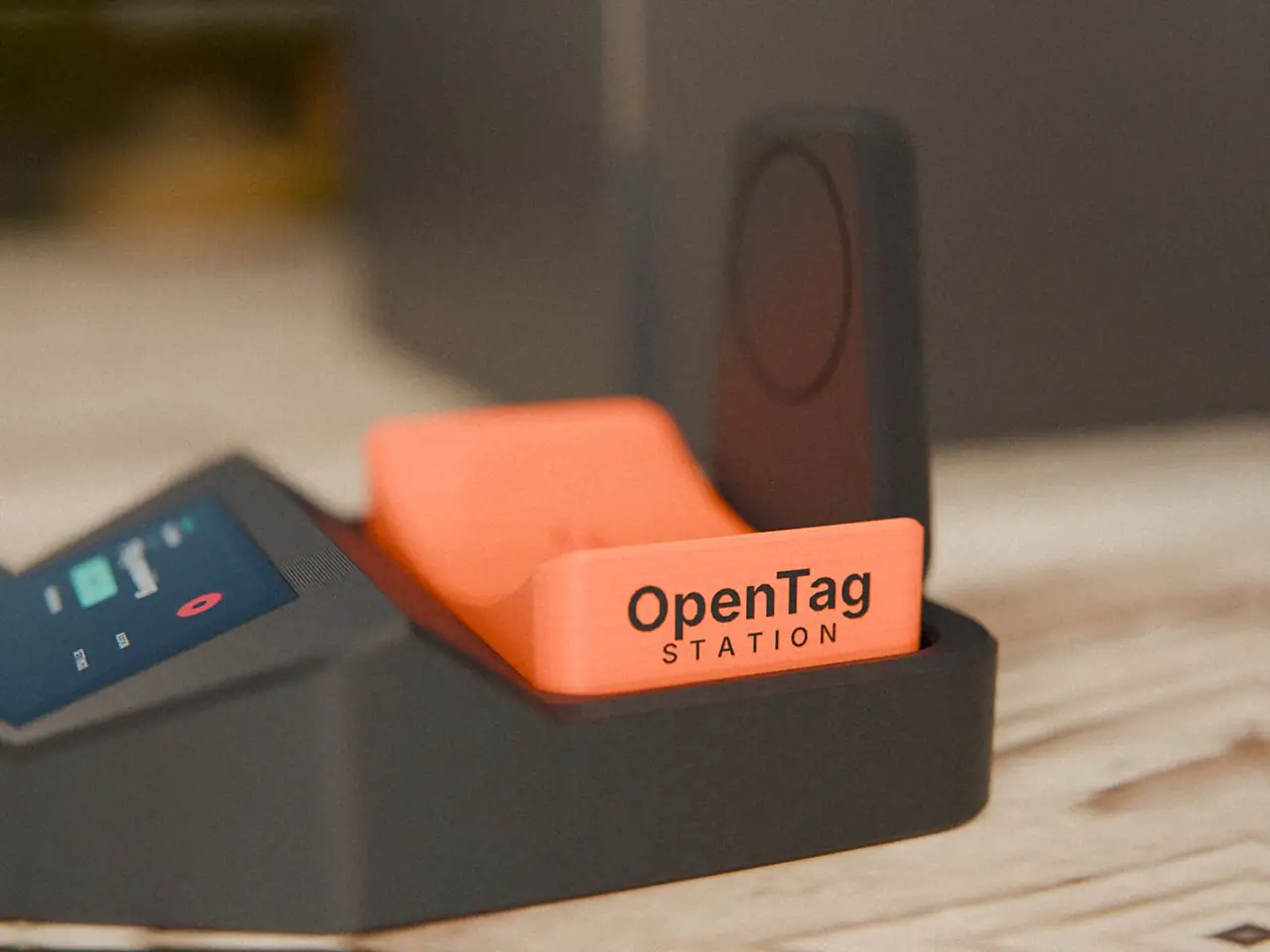
OpenTag Station: OpenPrintTag Reader/Writer + Scale (case) If you’re anything like me, you bought a pack of OpenPrintTags and then found out there’s basically nothing you can freely use to read or write them. So I built something. OpenTag Station is a scale with an NFC reader/writer built in, run from a touchscreen. Put a spool on it and it reads the tag, finds the spool in Spoolman, and weighs it. Hit Update and the new weight goes to Spoolman. It can also write blank OpenPrintTags from your Spoolman spools, and wipe old tags so you can reuse them. If you run FilaBridge, it can set which spool is in which toolhead too. It’s local only. It talks to your own Spoolman (and FilaBridge, if you use it) on your home network. No cloud, no accounts, and no AI running on the device. There’s an optional access token if you want to lock down the web page. Don’t expose it to the internet. This is the 3D-printed case I designed for it. It’s three parts, about 299 g of filament, and needs no supports. - Firmware, source, and setup guide: https://github.com/76cb/OpenTag-Station
- Docs: https://76cb.github.io/OpenTag-Station-Docs/
- Browser flasher: https://76cb.github.io/OpenTag-Station/
Spoolman 0.27 is recommended. What you need Electronics - WT32-SC01 Plus touchscreen controller (it has to be the Plus; the older WT32-SC01 won’t work)
- YZC-133 load cell, 5 kg or 2 kg
- NAU7802 scale amplifier board
- ELECHOUSE NFC_ST25R3916B NFC module
- Blank OpenPrintTag NFC tags, one per spool (see which tags work before you buy)
- USB-C panel-mount cable, a right-angle USB-C plug, a 5 V USB power supply, and cables for the WT32’s EXT connector and the NFC module
Hardware - 2x M5 nuts and 2x M5x12 button head screws (ISO 7380, head 2.8 mm or less)
- 2x M5x16 cap screws
- 2x M2.5x10 screws with nuts
- 4x 12 mm stick-on rubber feet (or you can print your own in TPU)
The firmware has fixed pins and only supports this controller and this reader, so buy the exact parts. Look-alikes won’t work. Wiring is in the docs I linked. The case - Three parts: body.stl, scale_platform.stl, nfc_cap.stl
- Reader tower at the back, which is also the spool backstop
- One-piece closed body with a flush screen. Everything goes in from the top, and there’s nothing underneath to open.
- Pockets for the right-angle USB-C plug and the WT32’s side-entry JST plugs
- The ring on the reader tower is 54 mm across and plain inside, so you can add a logo with your slicer’s emboss/SVG tool or a sticker :)
Print settings PLA or PETG, 0.2 mm layers, 3-4 walls, 15% gyroid, no supports. All files are exported in print orientation, so import them as-is. Part Orientation Notes
scale_body.stl Upright, flat floor on the bed Footprint 154 x 190 mm, 120 mm tall. You need a bed of at least 195 mm in Y. No real overhangs; the tunnel roofs are flat bridges of 14 mm or less.
scale_platform.stl Flat side down The channel underneath is a 14.6 mm bridge.
nfc_cap.stl On its back, as exported
Assembly - Load cell. Slide two M5 nuts into the channel in the end of the load-cell pedestal (left end, reachable through the platform bay). Set the cell on the pedestal with the wires toward the left, then screw the button heads down into the nuts.
- USB-C panel cable. Put the flange in the rear recess and pass the plug end through into the bay. Secure it with 2x M2.5 screws and nuts (the hex traps open into the bay). Route it through the right tunnel and the load-cell wires through the left tunnel. Both come out in the cavity under the screen.
- NAU7802. Place it between the locator lugs on the cavity floor, under the screen.
- NFC reader. Drop it into the tower slot from the top. Its wires go down the shaft inside the tower and come out into the platform bay. Run them across the bay into the left or right tunnel with the other cables, then press the cap on.
- Platform. Put it on the cell’s free end with 2x M5x16 through the oblong pocket. It sits straight on the cell with no spacer.
- Screen. Orientation matters, because the cavity has pockets for the plugs. Seen from the front, the WT32’s USB-C end goes on the left and the edge with the I/O / DEBUG / SPK JST connectors goes at the top (toward the back). The right-angle USB-C plug fits untrimmed in the front-left corner, and the JST plugs and their wire bend have a pocket under the back edge. Plug in the cables, then press the WT32 straight down until the glass is flush with the top. Four 0.2 mm friction ribs on the side walls hold it, and it rests on a 3 mm ledge all around. Set the display rotation in the firmware to match.
To remove the screen, use a small suction cup (phone-repair type). If it’s loose on your printer, two thin strips of double-sided foam tape on the ledge fix it. Using it Put the spool on with its tagged flange facing the back tower, and slide it in from the front until it touches.
Descripción original del autor, publicada en Printables.