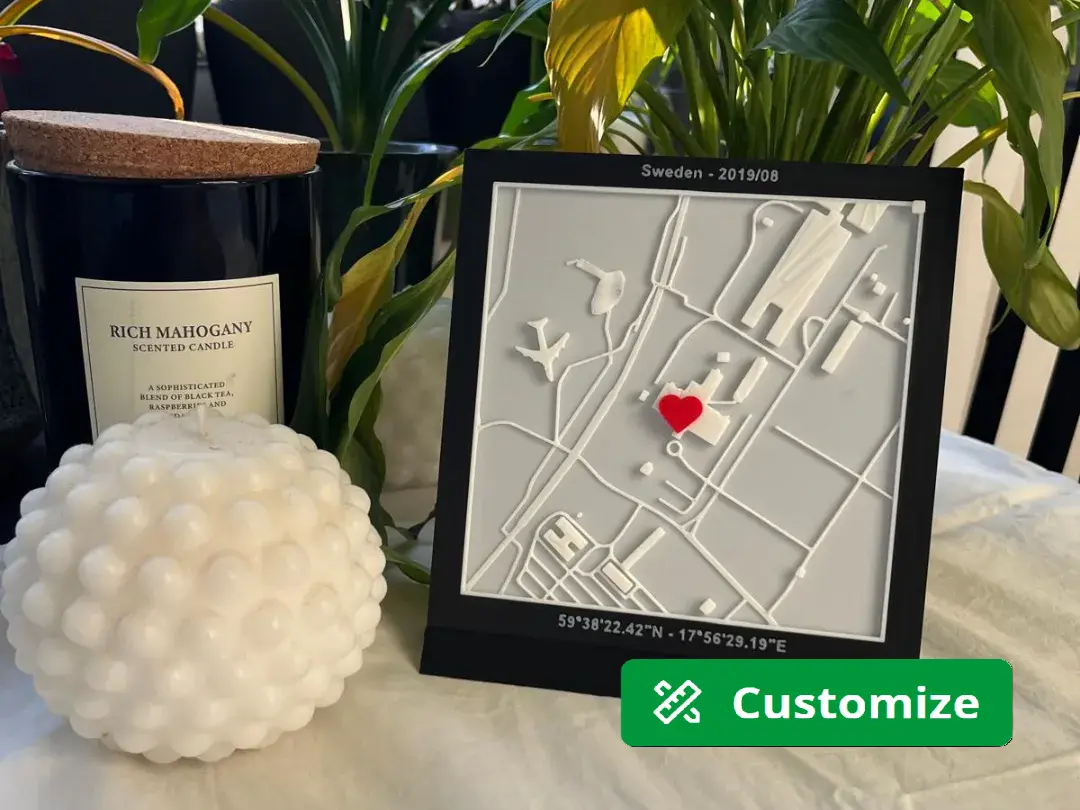
Map to my heart - Personalized 3D City map
por Ekta Labs en MakerWorld
Do you want a bigger map? The big wall frame edition you can find here: https://makerworld.com/en/models/1017973#profileId-998649
MakerWorld entrega los archivos a usuarios con cuenta gratuita
Licencia
Solo uso personalStandard Digital File License
Licencia estándar de archivos digitales: solo uso personal. No se permite compartir, revender ni subir el archivo a otros sitios, ni vender las impresiones.
Al descargar aceptas respetar la licencia y dar crédito a Ekta Labs.
- Categoría
- Figuras y arte
- Descargas
- 9,140
- Publicado
Sobre este modelo
Do you want a bigger map? The big wall frame edition you can find here: https://makerworld.com/en/models/1017973#profileId-998649
“Map to my Heart” Frame – A Beautiful Way to Celebrate Your Love Thank you for choosing this heartfelt design! This customizable frame with a heart is the perfect way to highlight the location where you and your loved one first met. Whether it’s a meaningful gift or a special keepsake for yourself, this design is sure to be treasured for years to come. Follow these steps to create your personalized map:
Step 1: Create and Print Your Custom Map Topography
- Visit Touch Mapper Go to the Touch Mapper website to generate a 3D printable map of your special location.
- Scroll Down to Enter the Address - On the main page, scroll down until you find the field where you can enter the desired street address of your meaningful location.
- Enter the address and confirm the location on the map preview.
- Enable Advanced Options - Click “Show advanced options (also hides location marker****)” to unlock the customization settings.
- Set the Map Dimensions Use the following settings for the best results: - Custom print size: Set this to 13 cm.
- Custom scale: Choose 1:3460, which will display an area of approximately 450 meters around your chosen location.
- Download and Print Your Map - Once your map is ready, export it as an STL file.
- Import the file into your slicer software (e.g., Bambu Studio), slice it, and print the map using your 3D printer.
- Measure the map in the slicer before you print it since touch mapper sometimes get it out bigger than 13x13.
Tips for Printing the Map
- Use a layer thickness of 0.25 mm or 0.3 mm for the best results.
- The base of the map is 0.6 mm thick, which means you can print it in just two layers.
- Print the top layer at a slower speed to achieve a smooth surface finish.
Does the cone not disappear? @ radeczek Found a great workaround for those experiencing the bug on Touch Mapper where the cone can't be removed. Huge thanks to @radeczek for figuring it out! Here are the steps. You can also watch the GIF that will show you!
In the objets menu, click on object > divide into parts and delete the first object. Then there will be no marker :) / @radecsek
Step 2: Print the Frame and Heart
- Customize Your Frame
- The frame text included in the file is fully customizable in Bambu Studio. Adjust the text to add your names, the location, country or city and even the latitude and longitude in DMS format. This makes the frame even more personal and unique.
- Use the embedded Excel tool in the Word (at the end of this doc) document to convert latitude and longitude from decimal degrees to DMS format. ( I was not able to add the doc so here is a link to a 3party helper).
https://www.latlong.net/lat-long-dms.html
- Print the Included File - The file contains both the frame and two heart designs. Before printing, you can choose to print everything or delete one of the heart designs if you prefer.
- The frame is already sized to perfectly fit the map you created in Touch Mapper.
Step 3: Assemble the Map, Frame, and Heart
- Attach the Map to the Frame - Use adhesive to carefully secure the printed map inside the frame.
- Position and Attach the Heart - Place the heart on the map to mark the exact location of your special memory. Once positioned, glue it in place for a professional finish.
Optional: Print Everything as One Model For those who prefer a seamless process, you can print all parts together as a single model:
- Combine the Files in Bambu Studio
Descripción original del autor, publicada en MakerWorld.