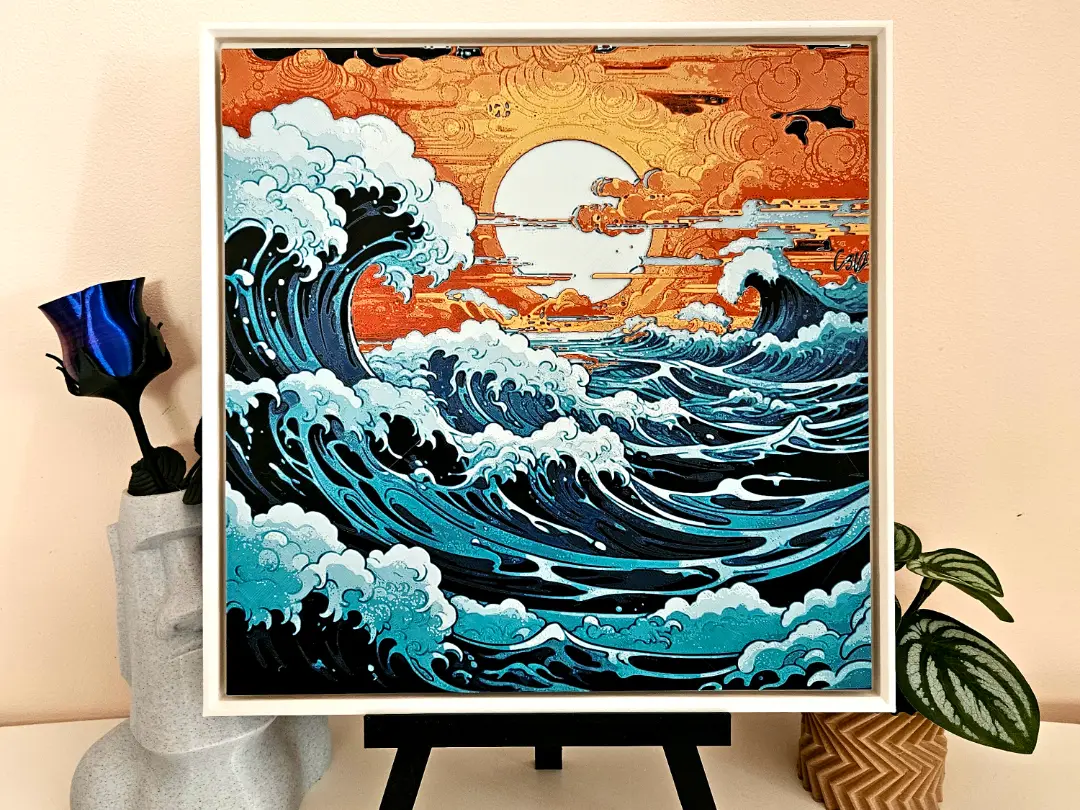
Japanese Wave - Filament Painting (HueForge)
por C3D en MakerWorld
If you want to sell prints of this model, as well as all of my models - future and past
MakerWorld entrega los archivos a usuarios con cuenta gratuita
Licencia
Solo uso personalStandard Digital File License
Licencia estándar de archivos digitales: solo uso personal. No se permite compartir, revender ni subir el archivo a otros sitios, ni vender las impresiones.
Al descargar aceptas respetar la licencia y dar crédito a C3D.
Archivos (1)
- Frame_272x272.stl STL · 80 KB
- Categoría
- Figuras y arte
- Formatos
- STL
- Descargas
- 6,288
- Publicado
Sobre este modelo
If you want to sell prints of this model, as well as all of my models - future and past Subscribe to My Patreon:
Or Subscribe for a commercial License Directly in Maker World:
MembershipC3D Commercial Membership - Authorized Merchant
"Japanese Wave" in the traditional style of “Under the Wave off Kanagawa”
Print at 100% infill with a layer height of 0.08mm with a base layer of 0.16mm Filaments Used: PLA Kingroon Black Transmission Distance: 0.4 PLA KINGROON Blue Transmission Distance: 4 PLA+ Jayo Mint Green Transmission Distance: 4.5 PLA+ Jayo Sky Blue Transmission Distance: 4.4 PLA Jayo Matte White Transmission Distance: 4.6 PLA KINGROON Red Transmission Distance: 4 PLA KINGROON Yellow Transmission Distance: 6
Swap Instructions: Start with Black At layer #12 (1.04mm) swap to Blue At layer #14 (1.2mm) swap to Mint Green At layer #17 (1.44mm) swap to Sky Blue At layer #18 (1.52mm) swap to White At layer #26 (2.16mm) swap to Black At layer #27 (2.24mm) swap to Red At layer #32 (2.64mm) swap to Yellow for the rest.
If you like my work, drop me a follow!🤜🤛
How to do more than 4 colors on a single AMS?
To use more than 4 colors with a single AMS is pretty simple when it comes to HueForges.
Always start the print from either Bambu Studio or Bambu Handy App - This will allow you to map the rolls of filaments to a certain slot in the AMS:
Now map the first 4 colors (which should already be inserted in the AMS to Slots 1 - 2 - 3 - 4 Once thats done move to maping colors 5 - 6 - 7 - 8 to respectively AMS Slots 1 - 2 - 3 - 4 again!
This will allow you to Change the rolls of filament once the printer is done with that color. For example, in the picture above once we are done with the Black color (Which is usually first) we are going to remove the black roll (you can do that while printing) with White, then once Charcoal Black is done we are going to change that to Red, Dark Gray to Yellow and we are done. ~ You can do that with as many colors as you need!
If you like my work, drop me a follow!🤜🤛
Descripción original del autor, publicada en MakerWorld.