Customizable Parametric QR Code Generator
por SnaKKo en MakerWorld
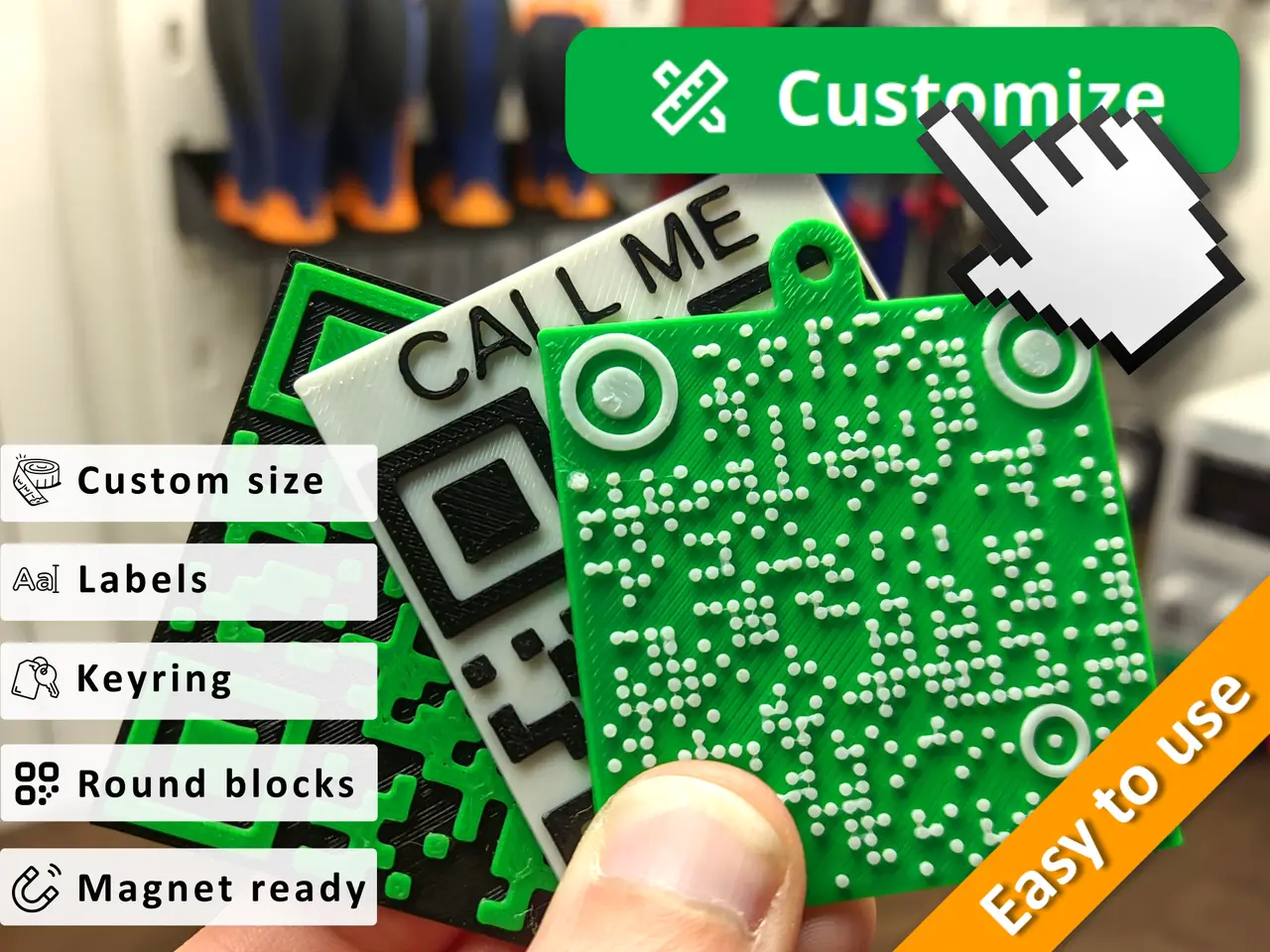
With this Openscad 3D model you can easily create and customize your QR Codes by simply clicking the “Customize” button on this page (only available for desktop and mobile browsers).
MakerWorld entrega los archivos a usuarios con cuenta gratuita
Licencia
Solo uso personalStandard Digital File License
Licencia estándar de archivos digitales: solo uso personal. No se permite compartir, revender ni subir el archivo a otros sitios, ni vender las impresiones.
Al descargar aceptas respetar la licencia y dar crédito a SnaKKo.
Archivos (1)
- qrcode.scad SCAD · 52 KB
- Categoría
- Figuras y arte
- Formatos
- SCAD
- Descargas
- 35,215
- Publicado
Sobre este modelo
With this Openscad 3D model you can easily create and customize your QR Codes by simply clicking the “Customize” button on this page (only available for desktop and mobile browsers). Don't worry about the QR code stand, I've got you covered: Ultimate QR Code Stand 🎉
You can change the following parameters:
- QR Code type (Text, Wi-Fi, Phone Call, vCard)
- Background, QR Code and Border dimensions
- Optional labels (position top/bottom/both and a lot of fonts)
- Optional hole for attaching to a keyring / keychain (listed under “Bill of Materials”)
- Optional round blocks
- Optional magnet (listed under “Bill of Materials”)
- …and much more!
Special characters are not supported by the MakerWorld customizer; you can download the .scad file and open it with OpenSCAD if you need to use them. Do not scale this model in the slicer.
*** Types of QR Codes you can create ***
Text QR Codes: These codes provide a direct link to a plain text message, such as a generic string, email address or website URL. They are ideal for sharing contact information or directing users to specific web pages.
Wi-Fi QR Codes: Eliminate the hassle of manually entering Wi-Fi passwords by using Wi-Fi QR codes. Simply scan the code, and your device will automatically connect to the specified network.
Phone Call QR Codes: Initiate phone calls with a single tap using phone call QR codes. Scan the code, and your device will automatically dial the specified number.
vCard QR Codes: Share your business card details effortlessly with vCard QR codes. Scan the code, and the contact information will be instantly saved to the user's device.
*** How to print multi-color ***
If you DON'T HAVE the AMS, configure Bambu Studio to pause the printing process at the exact right moment: immediately after the background color has finished printing and just as the QR code is about to start. This allows you to switch filament colors and achieve the desired multicolor effect. Here's how to add a pause at the layer:
- Right-click the green button with the white plus sign in the slicer interface.
- Select "Add Pause".
The right pause layer depends on the thickness of the background.
If you HAVE the AMS and want a greater color control over each individual part, you can go to the "Parts Download" tab and download each part individually (.STL) and then import/merge them in Bambu Studio. Make sure to answer "Yes" to the question “Load these files as a single object with multiple parts?”.
Once done you will find the parts already positioned on the plate and then you can decide what color to give to the background, qr code and labels.
*** Changelog *** UPDATE 2 Oct 2025
- The 3mf now uses Arachne (wall generator)
UPDATE 14 Feb 2025
- Improved Font Selection UI
UPDATE 10 Dec 2024
- Libraries updated
UPDATE 25 Sep 2024
- QR code preview now supports color customization for individual parts
Descripción original del autor, publicada en MakerWorld.