ColorMix Palette for INDX 4T (Decodable)
por MiniVan en Printables
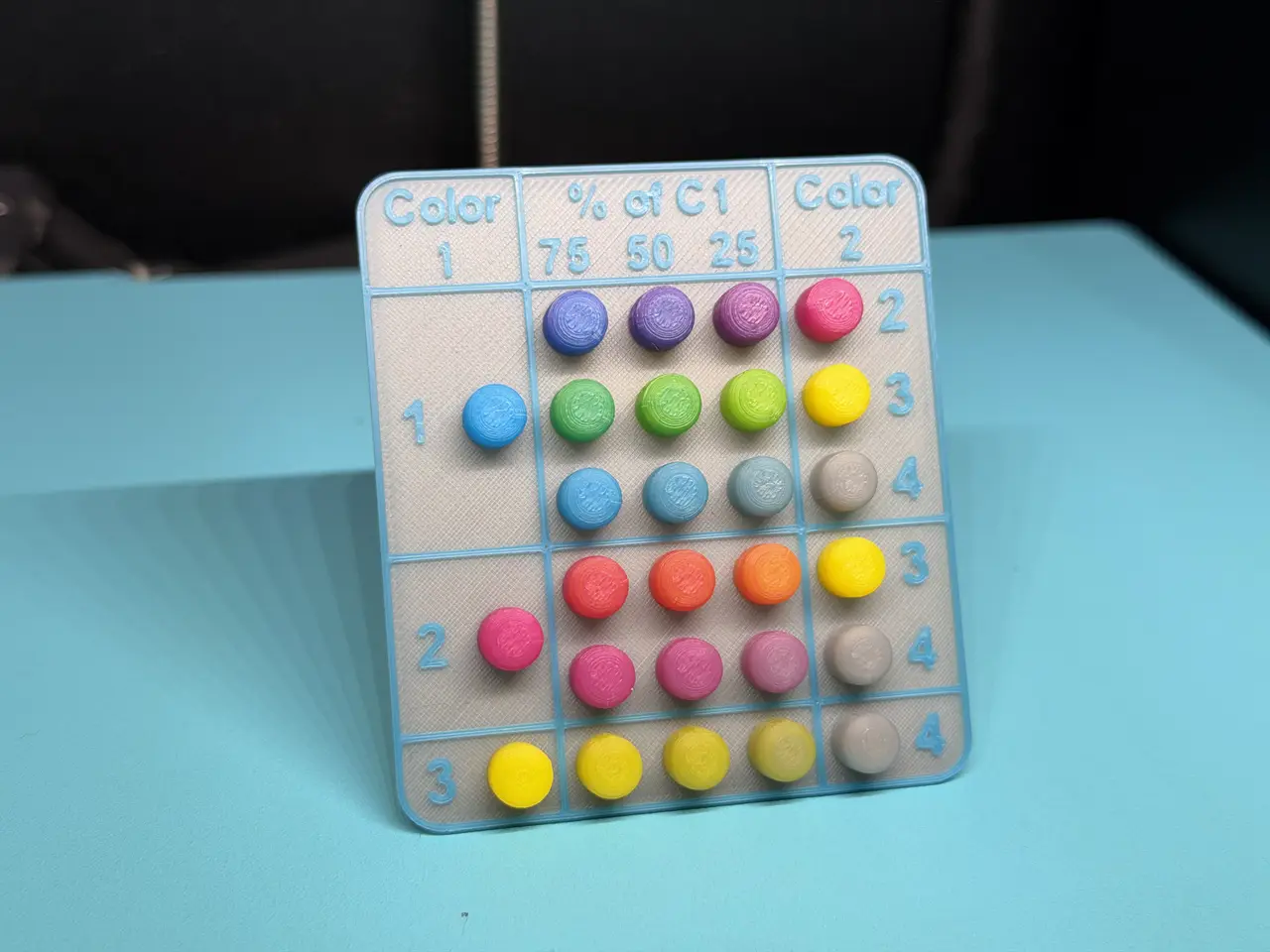
This ColorMix palette gives you the data you need to recreate your colors in the future.
Licencia
Uso comercial permitidoPuedes usarlo, modificarlo y venderlo; si distribuyes versiones modificadas deben ir con la misma licencia y sus fuentes.
Al descargar aceptas respetar la licencia y dar crédito a MiniVan.
Archivos (4)
- Categoría
- Para tu impresora
- Formatos
- 3MF, F3D, STEP, BGCODE
- Descargas
- 24
- Publicado
Sobre este modelo
This palette shows you all possible 2 color combinations for 4 filaments, while also giving you the information you'll need to recreate those colors in the future.
A pre-sliced model for the Core One INDX 4T is provided with generic PLA as the set material.
I've also attached the fully painted project as a 3MF that you can import into PrusaSlicer, incase you want to print on another machine or with a different material. Before Importing the 3MF file into PrusaSlicer... You must create the virtual extruders (Color Mixes) in your slicer BEFORE importing the model. This must also be done in the correct order to ensure your color mixes align properly with the labels on the palette.
Step 1 : Set your 4 filament colors in Prusa Slicer I used Polymaker translucent Cyan (#00FFFF), Magenta (#FF00FF), Yellow (#FFFF00), and Gray (#9199A4) PLA to print the palette shown. Step 2 : Create your Virtual Extruders Start with Extruder 1 and 2. Make sure to click the %75 E1 First, %50 E1 Second, and %25 E1 Last. (Note : Those percentages will not always line up left to right! hold your curser over the color to check the actual mix percentages) Do the same for all other extruder combinations in the following order... Extruder 1 and 3 Extruder 1 and 4 Extruder 2 and 3 Extruder 2 and 4 Extruder 4 and 4 When complete, Your list should look something like this. (Note the order of the Extruder Numbers and mix percentages). Click "OK" to save the virtual extruders.
Step 3 : Import the model Now that your virtual extruders are set up in the correct order, you can import and slice the model. The colors should automatically assign to the correct swatch when imported. To check your work, you can take a look at the layers of each swatch to see how much of each color is going into each swatch of the palette.
Mostly c1 on the left, an equal mix of c1 and c2 in the middle, and mostly c2 on the right.
Descripción original del autor, publicada en Printables.