8-in-1 Z-Offset First Layer Calibration
por SJB4127 en Printables
One print, 8 different Z-Offsets. Quick way to find that perfect z-offset
Licencia
Solo uso personalCC BY-NC-ND 4.0 — Atribución, no comercial, sin derivadas
Solo para uso personal, sin modificarlo y dando crédito. No se permite vender ni redistribuir cambios.
Al descargar aceptas respetar la licencia y dar crédito a SJB4127.
Archivos (1)
- Categoría
- Para tu impresora
- Formatos
- 3MF
- Descargas
- 3,635
- Publicado
Sobre este modelo
DISCLAIMER: Use at your own risk! Not responsible for damage to your printer or accessories!
Important: - Always restart your printer after using this file! This file uses the G92 command, which changes your printer offsets. These offsets will remain changed until you save them in memory (M500 command) OR restart your printer (which sets them back to the original value) - PrusaSlicer v2.6.0-alpha6 or higher is required!
Not tested on Orca or Bambu slicers
I was struggling to get that perfect first layer using a new type of filament. After countless calibrations I still was not happy. In the end, my issue was a combination of temperature, layer height and extrusion multiplier. During this process I developed this custom G-Code macro to test 8 different z-offset combinations in one print. For those of you who have never heard of this, the macros are essentially code which can adjust your G-code during slicing. Also see: Link to 9-in-1 Bed and Nozzle Temperature model: https://www.printables.com/model/836320-9-in-1-temperature-first-layer-calibration-matrix
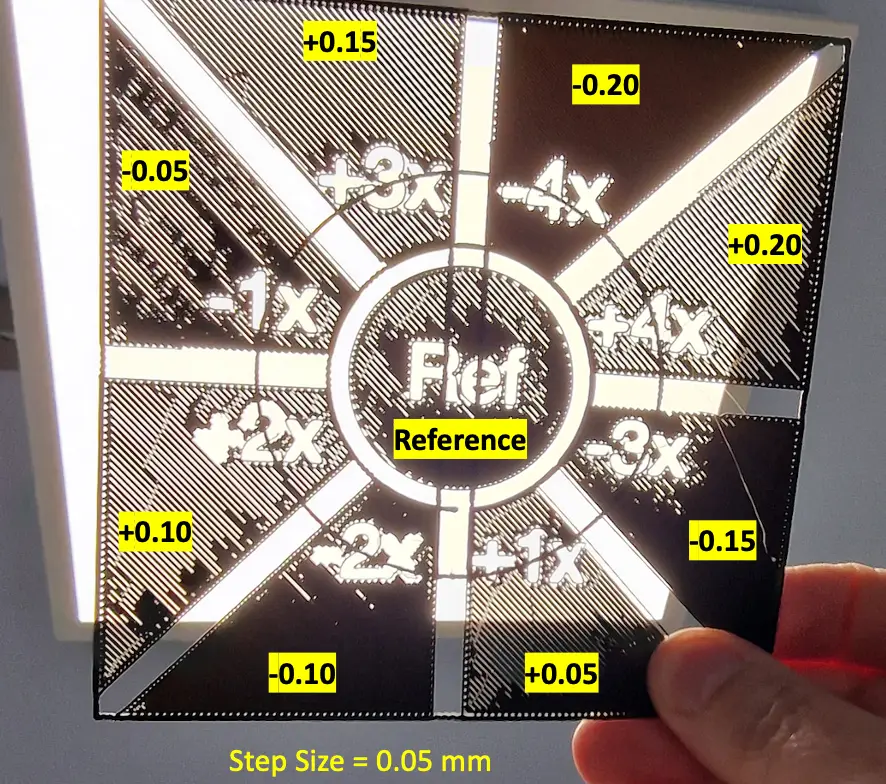
What it does: Prints one reference circle and 8 triangular tiles, each with a different Z-Offsets. It starts the circle with your default Z-offset, then moved the nozzle down 4x the offset value. Each sequential tile is then raised by the factor until you are at +4x: So if you do not have nozzle-to-bed contact when printing the first triangle, you should not have issues with the rest of them.
How to Use & Modify This Macro:
The first time you use this file, please raise your Z-offset by an additional 0.1 to 0.2 away from the bed. This is just a precaution until you get used to this model: There are two customer G-Code entries in this file Printer Settings → Custom G-code → Between objects G-code: {local SJB_calibration_step_size = 0.025 } Here you define the step size you want to move the z-offset between tiles. The macro moves the z-offset from -4x to +4x this factor. Example: SJB_calibration_step_size = 0.02 means that the z-offset will be moved by -0.08, -0.06, -0.04, -0.02, +0.02, +0.04, +0.06, +0.08 Example: SJB_calibration_step_size = 0.05 means that the z-offset will be moved by -0.2, -0.15, -0.1, -0.05, +0.05, +0.1, +0.15, +0.2 Tip: I find that anything smaller than 0.02 makes no difference, as most printers cannot achieve this kind of positioning accuracy. I use 0.05 for the initial test and 0.025 for the fine tuning. As you can probably predict, by moving the Z-offset down and additional 0.2 mm may cause the nozzle to scratch the bed. This is why the first layer is set to 0.3 mm and not 0.2 mm. Additionally, the macro checks the calculated clearance between the nozzle and the bed. If the calculated clearance goes below 0.09 mm, no offset is applied to that tile and the default z-offset is used: {local SJB_min_bed_2_nozzle_clearance = 0.09 }
Printer Settings → Custom G-code → End G-Code: (optional) This is just some optional G-code to produce lines on top of the tiles. This keeps them together when you take them off the bed.
Recommended Usage: Rough offset - Raise your standard offset away from the bed an additional 0.1 - 0.2 mm if this is the first time using this model - set the value of SJB_calibration_step_size to 0.04 or 0.5 - Slice, export, and print. The round circle is your default z-offset. Watch the first tile and abort the print if your nozzle makes contact with the bed. - Analyze the results (see below). - Update your new Z-offset according to the results
Fine Tuning: - set the value of SJB_calibration_step_size to 0.025 and repeat the print - Analyze the results (see below). - Update your new Z-offset according to the results
Interpreting the Results: Light Test I use the light-test to see if the first layer is consistent and if there are any gaps. As you can see from the picture, my reference is not ideal and the strands are not connected. Also anything above the reference is just as bad or worse. The -1x (e.g. -1 x 0.05 step size = a reduction of 0.05mm) shows better results, and the lower you go, the better it gets. Visual Inspection: The light-test shows that -4x has the best results, however the visual inspection shows waves starting at -2x. So here I would change the Z-offset by -2x 0.05mm or -0.1 mm. Repeat with the fine tuning: So lower your Z-offset by -1x to start, then repeat the test: Again, -4x and -3x shows waves in the surface. Here the best result appears to be -2x or -0.05mm (lower).
Thats it! Version History: v1.3 | 2024.04.15 - Code Review by @BradTN_726852 & corresponding correction of several instances of G01 to G1 v1.4 | 2024.04.17 - Reset the “Infill/perimeter overlap” value to the default value of 15% to prevent confusion in the results.
Descripción original del autor, publicada en Printables.